What Is Scoring in Catalyzer?
Scoring turns a stack of form submissions into a ranked, defensible decision. Each scored question contributes points, and the points combine into a total you can sort by, compare, and explain to someone who asks how a decision was made.
Two things decide how a score gets produced. A question can be scored automatically, by rules you write once, or manually, by a person reading the answer. One form can use both.
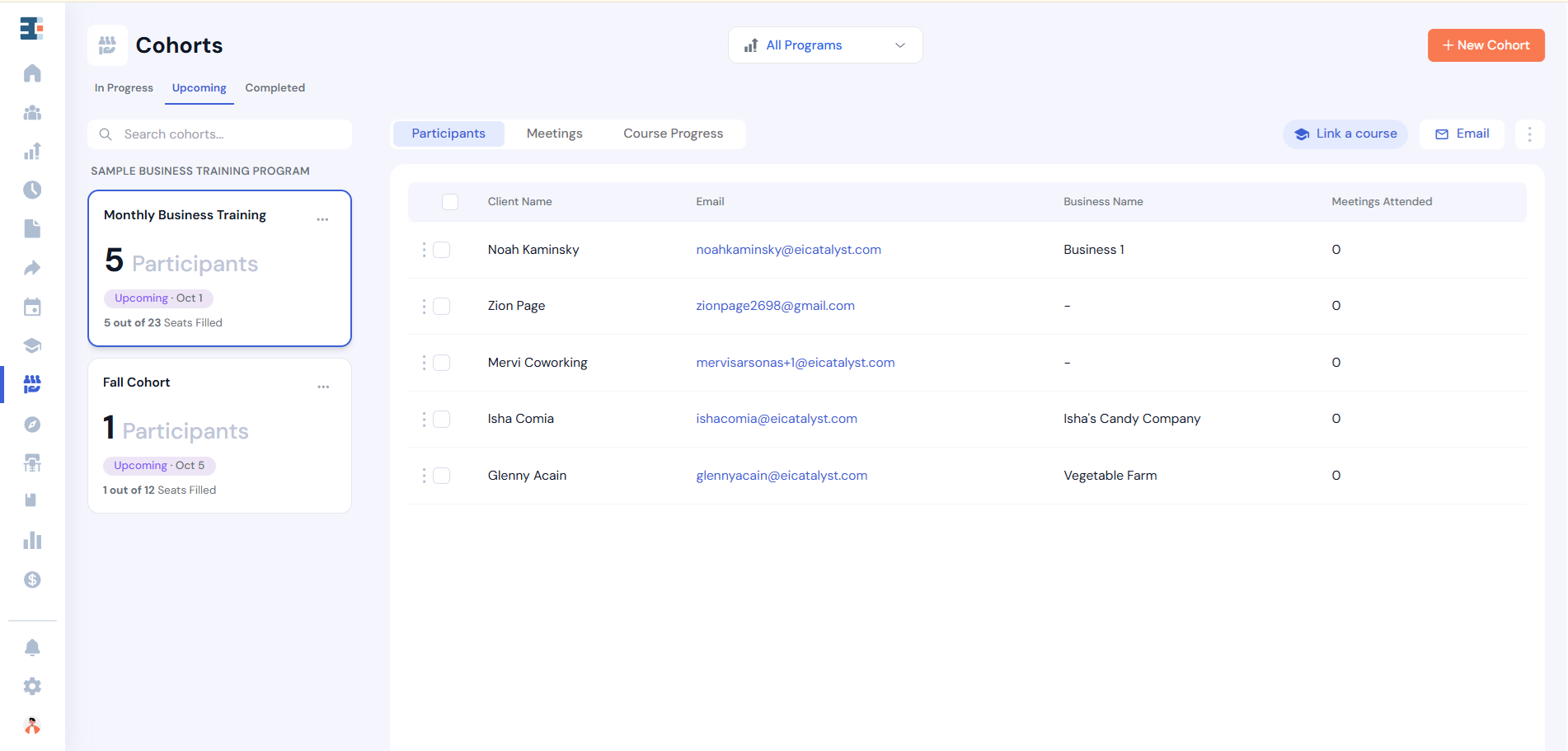
You might use scoring to select a cohort for Accelerate Tampa, to rank applicants for a microgrant, or to triage intake so the strongest candidates reach an advisor first.
💡 Scoring is available on Application forms only. The scoring controls do not appear anywhere on a Basic form. This is a product rule rather than a permission setting, so there is nothing to switch on and nobody to ask for access. If you've built a survey and gone hunting for scoring, the form type is the reason.
The Forms article covers the difference between Basic and Application forms. Scoring is the sharpest practical consequence of that choice: a Basic form collects answers, and an Application form evaluates them.
Turning Scoring On for a Question
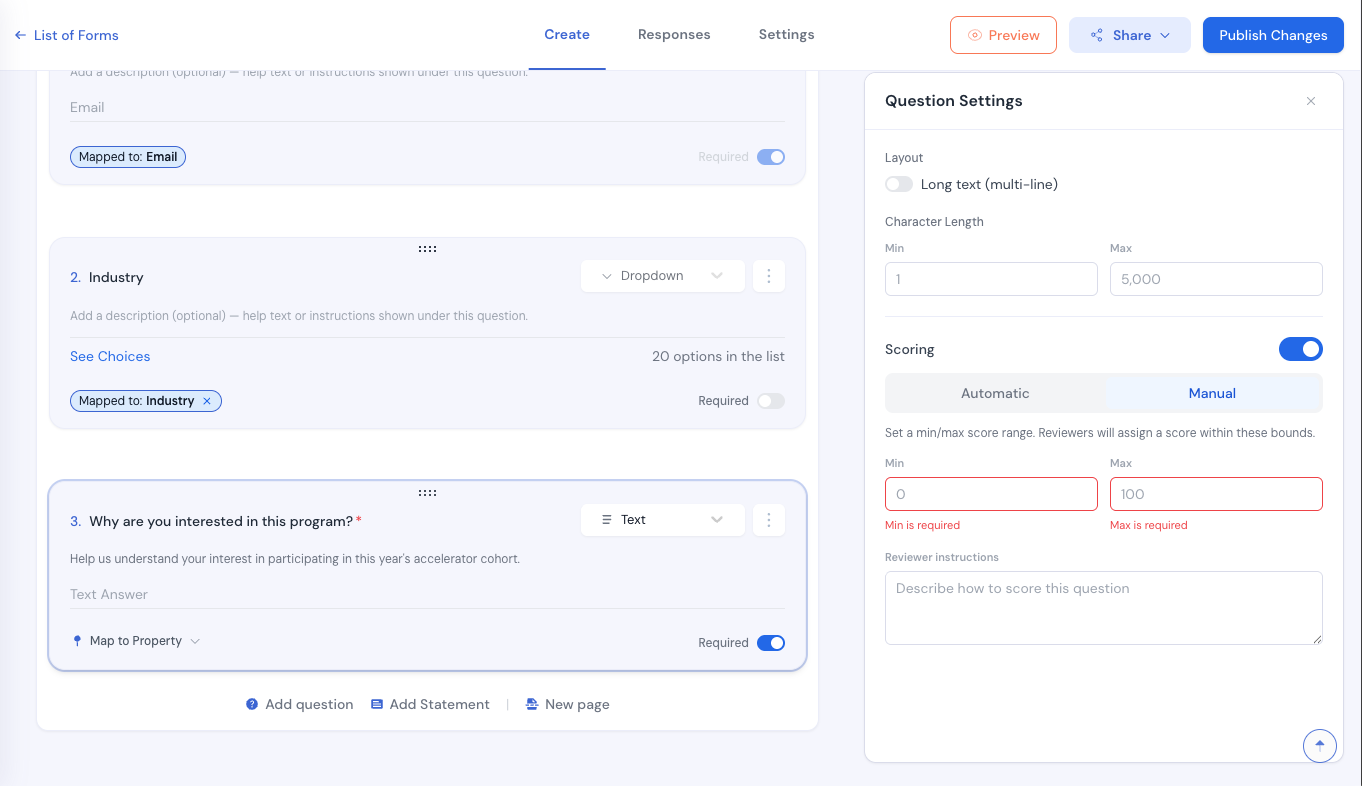
Scoring is set per question. Open a question's settings panel in the form builder and switch on Scoring. Two tabs appear: Automatic and Manual.
Because the choice is made per question, one form can mix the two. That is the usual shape for an application: rules handle the questions with factual answers, and reviewers handle the questions that call for judgment.
Automatic Scoring: Writing a Rubric
Automatic scoring is a list of rules. Each rule pairs an operator, a value, and a number of points. When a submission arrives, Catalyzer reads the answer, works down the list, and awards the points from the first rule that matches.
💡 Rubric rules are ordered, and the first match wins. Catalyzer stops at the first rule that matches and never reads the rest. A rule for is greater than 0 sitting above a rule for is greater than 100 makes the higher band unreachable, because every answer over 100 is also over 0 and gets caught on the way past. Put your most specific rule at the top and your catch-all at the bottom.
The Operators You Get Depend on the Question Type
Each kind of question offers a different set of operators, and the differences are large enough to affect how you design the form. Check this before you write a rubric, because a question type that can't express the rule you have in mind needs to change before people start submitting.
- Text, Long Text, Email, Phone, Website. Is answered, Is left unanswered. Nothing further.
- Date. Is answered, Is left unanswered, Is before, Is after, Is between.
- Number, Dollar/Finance, Rating Scale. Is answered, Is left unanswered, Is greater than, Is less than, Is between, Equals, Does not equal.
- Multiple Choice, Checkbox, Dropdown, Multi Select, Yes/No. Is answered, Is left unanswered, Is any of, Is none of.
- Signature, File Upload, Address. Is answered, Is left unanswered.
- Matrix Simple, Matrix Complex. No operators. Matrix questions cannot be scored.
The content of a free-text answer cannot be scored automatically. Text, Long Text, Email, Phone, and Website questions offer only whether the question was answered. There is no way to award points for a keyword, a length, or the quality of the writing. When the substance of the answer is the thing you're evaluating, that question has to be Manual.
Matrix questions stay out of scoring entirely. Matrix Simple and Matrix Complex have no automatic operators and no manual option. They collect their data and contribute nothing to the total.
Rating Questions Have a Shortcut
A Rating Scale question can use the chosen rating value directly as its score, so an applicant selecting 4 on a 1-to-5 scale is worth 4 points without you writing a single rule. Reach for this when the scale already means what you want the score to mean.
Manual Scoring: A Person Reads the Answer
Set a minimum and a maximum, and the reviewer enters a score inside those bounds.
You can also write reviewer guidance: instructions that appear to the reviewer at the moment they score that question. This is where the standard that usually lives in one person's head becomes something every reviewer can read. A line like "Award 5 only if the applicant names a specific customer segment" does more for consistency between reviewers than a briefing they attended three weeks ago.
Multiple Scoring Sections
Multiple scoring sections splits a single question into several named parts, each with its own title and its own minimum and maximum. A business plan upload can be scored on market analysis, financial projections, and team strength as three separate sections, rather than being broken into three separate upload questions.
This option appears on file-upload questions only, and only in Manual mode. It is not available on Long Text, which is where most people look for it first.
Form-Level Settings
Four settings apply to the whole form rather than to one question. All of them live in Form Settings.
Whole numbers only controls the score format. It's off by default, so scores may carry decimals. Turn it on when you want integers, which is worth doing if the scores end up in a report someone else reads.
Scoring cutoff is an optional date after which scoring becomes read-only. The panel always states plainly where the form stands, showing "Scoring is open (no cutoff set)." or "Scoring closes on [date]." or "Scoring closed on [date]." Set the cutoff when you open the review window, so your reviewers read the deadline off the screen instead of remembering it from an email.
Assign for Review (upon submission) routes new submissions to reviewers as they arrive. Individual sends them to named people. Round Robin distributes them to your reviewers in turn. The Forms article describes Assign for Review as an action you take by hand; this is the same thing happening on arrival.
Question-level reviewer assignment is off by default, which means whoever is assigned to a submission scores every question on it. Switch it on and each scored question carries its own list of assigned reviewers, so the person who reviews financials sees the financial questions and stops there. Decide this before reviewers start working, because changing it partway through a cycle changes who is responsible for what.
Reviewing a Submission
Every submission carries a status: Pending, Assigned for Review, Accepted, or Declined. The Forms article covers what each one means.
A reviewer opening a submission sees a badge marking it as assigned to them, along with a roster of everyone else assigned to it. A submission nobody has been assigned to reads "No reviewers assigned."
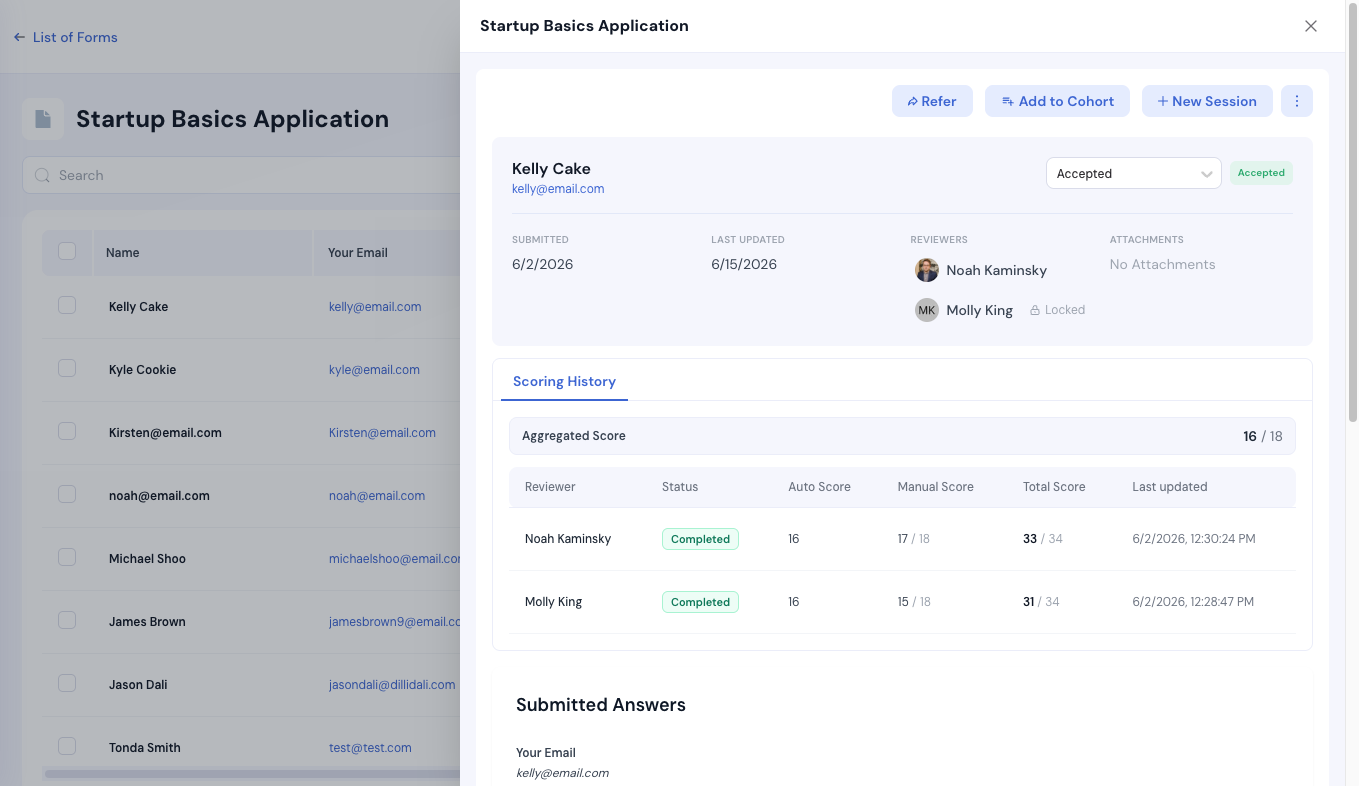
Reviewers score inline on the submission itself, question by question. The scoring Overview card shows the manual score, the automatic score, and the two combined.
Reviewer assignment locks once a submission is accepted or declined. Bulk assignment refuses the change with "Reviewer assignment is locked for accepted or declined submissions." The decision is the point of no return for who is on record as having reviewed that application, which is the answer you'll need when a funder asks about it eight months later.
How Multiple Reviewers Combine
💡 An important rule in Catalyzer: reviewers are averaged, question by question. Each question's contribution to the aggregated score is the mean of the reviewers who actually scored it. Three reviewers awarding 6, 8, and 10 on a question contribute 8 to the total. A fourth reviewer sharpens that number without inflating it.
For a question split into scoring sections, the same rule applies one level down. Each section is averaged across the reviewers who scored it, and the averaged sections are then summed to produce the question's score.
An unscored question and a zero are different things, and Catalyzer holds them apart. A question nobody has reached yet sits out of the average entirely. A question every reviewer deliberately scored 0 contributes that 0 and pulls the total down. This is why a half-reviewed application doesn't look artificially weak while the reviewing is still in progress.
Why Your Total May Differ From a Colleague's
A reviewer sees totals derived from their own scoring. The numbers on screen leave out what other reviewers awarded, so two people can open the same submission at the same moment and see different figures.
This is deliberate. Review stays independent when nobody can work backwards from a moving average to figure out how a colleague scored. The aggregated figure is the one the decision rests on.
Scoring History
Catalyzer keeps a read-only history of scoring activity on a form. Reviewers and system administrators can reach it inherently, and Form Settings carries a per-form list where you can grant it to additional people.
This is the surface where reviewer names and their per-question scores are visible together. The scoring view a reviewer works in is filtered to themselves, so the history view is where the full picture lives, and that is why access to it is controlled rather than open to the hub.
What's Next
Read Forms for the difference between Basic and Application forms, the full list of question types, and how submission statuses move. Read Programs for attributing the applications you accept to the initiative they belong to.