What Is a Program in Catalyzer?
In Catalyzer, programs are structured initiatives under which services are delivered and attributed.
Any service activity you record in Catalyzer — sessions, referrals, events, or cohorts — can be linked to a program.
You can use the Programs tool to:
- Group clients under a shared initiative
- Attribute service activities
- Track outcomes at the initiative level
- Report to funders and stakeholders
Programs are what turn day-to-day service delivery into measurable impact.
How Are Clients and Businesses Associated with a Program?
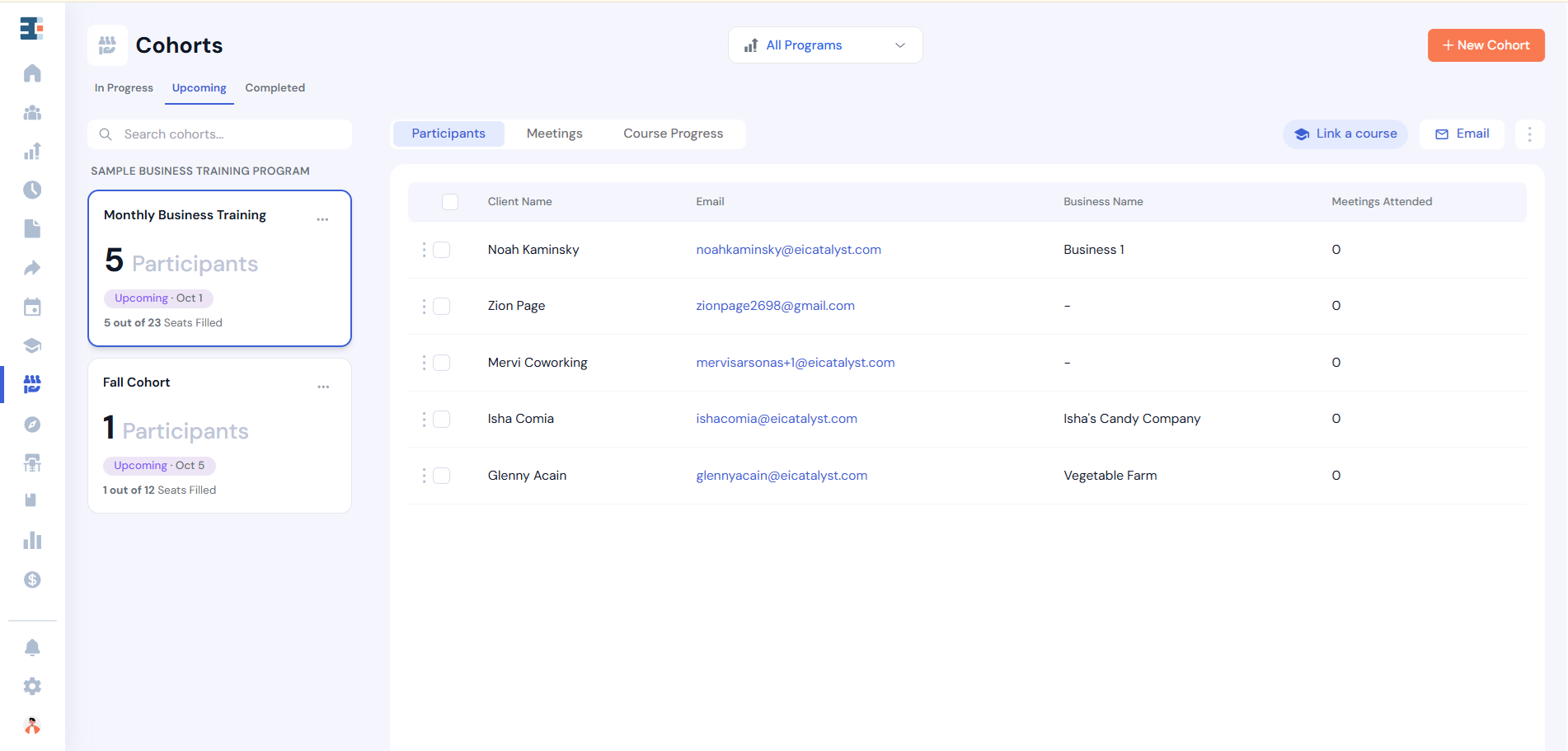
Sessions, referrals, cohorts, and events can all be associated with programs in your Catalyzer hub. When a client or business participates in any of these activities under a program, they are automatically considered “served” by that program.
💡 An important rule in Catalyzer: Clients and businesses are not manually assigned to programs. They are associated with programs through participation in service activities.
In other words, a client or business must receive a service under a program in order to be counted as part of it.
For example, if you want to reflect that Blue River Brewing was served by your Consumer Goods Accelerator, that business would need to participate in a service activity under that program — such as a session, referral, event, or cohort tied to it.
This structure ensures that program reporting is based on actual service delivery, not manual tagging.
How to Set Up a Program in Catalyzer
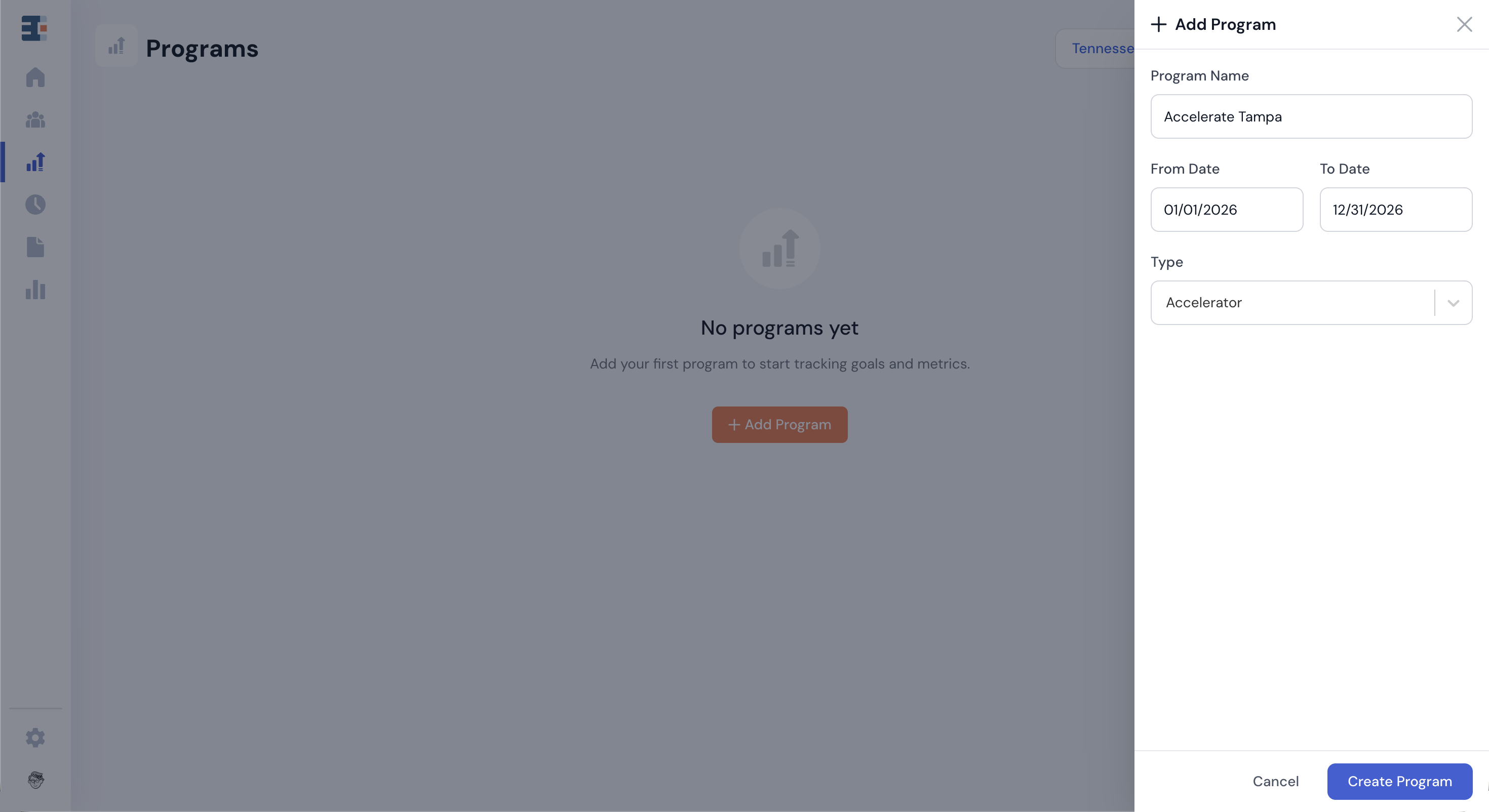
To create a program, navigate to the Programs tool in the left-side navigation panel and click Add Program.
Fill in the basic fields, including a timeframe for the program, and click Create Program.
The start and end dates you select are important. Program goals and reporting metrics will measure data captured within that timeframe.
Setting Program Goals
Once your program is created, you can define goals to track its progress and impact.
Goals are useful for internal tracking, and many programs also have predefined targets agreed upon with funders. The Goals feature allows you to measure progress toward those targets in real time.
To set a goal:
- Click into your program. You’ll land on the Goals tab.
- Click Add Goal.
Next, define the metric you want to measure. Catalyzer supports four metric types:
- Number of (count)
- Sum of (numeric total)
- Average of (mean)
- Percentage of (fraction)
The goal builder is designed to read like a sentence.
For example, if you want to measure total businesses served, your goal might read:
[Number of] [businesses]
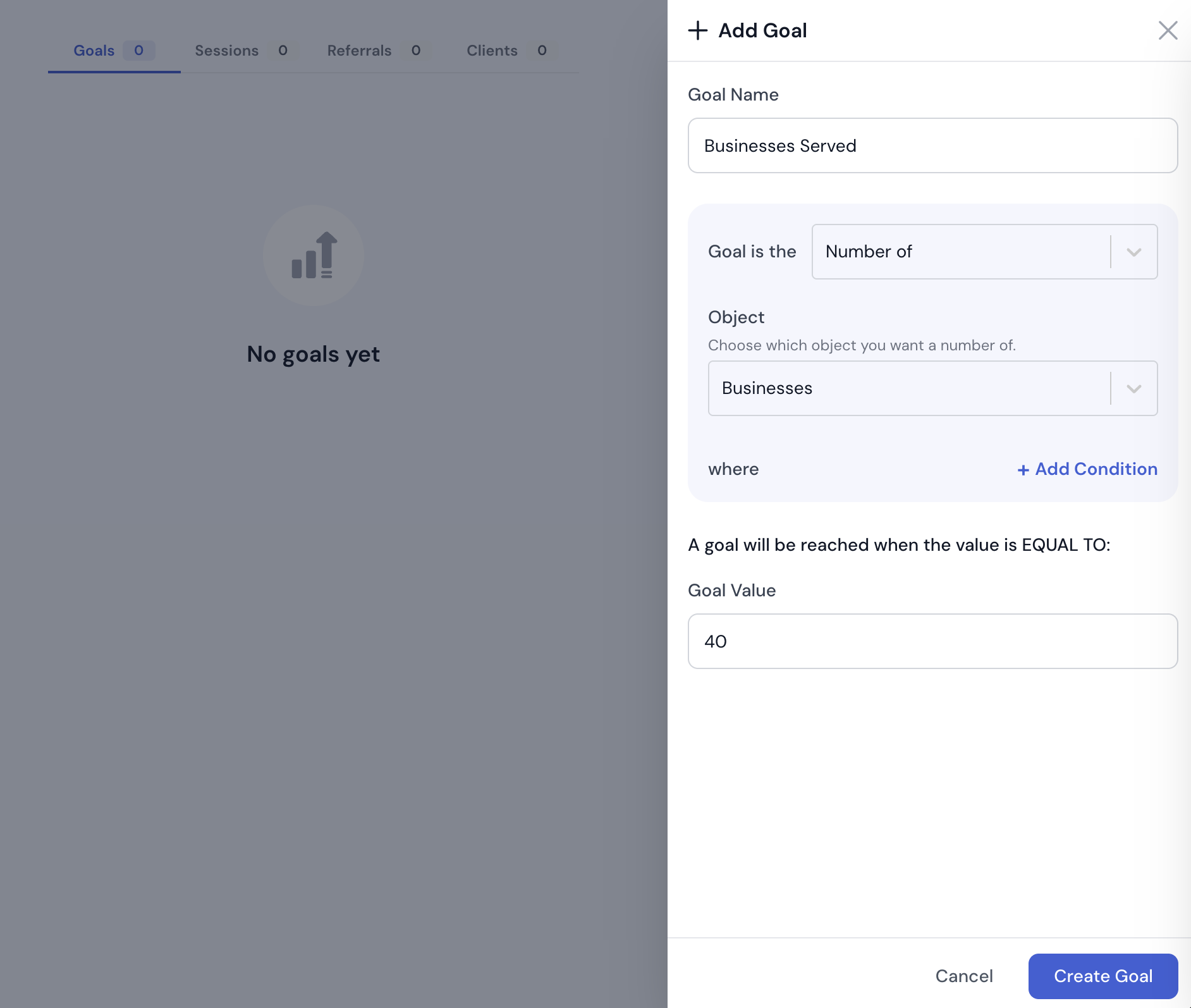
This is the default option when creating a new goal.
If you want something more specific, such as:
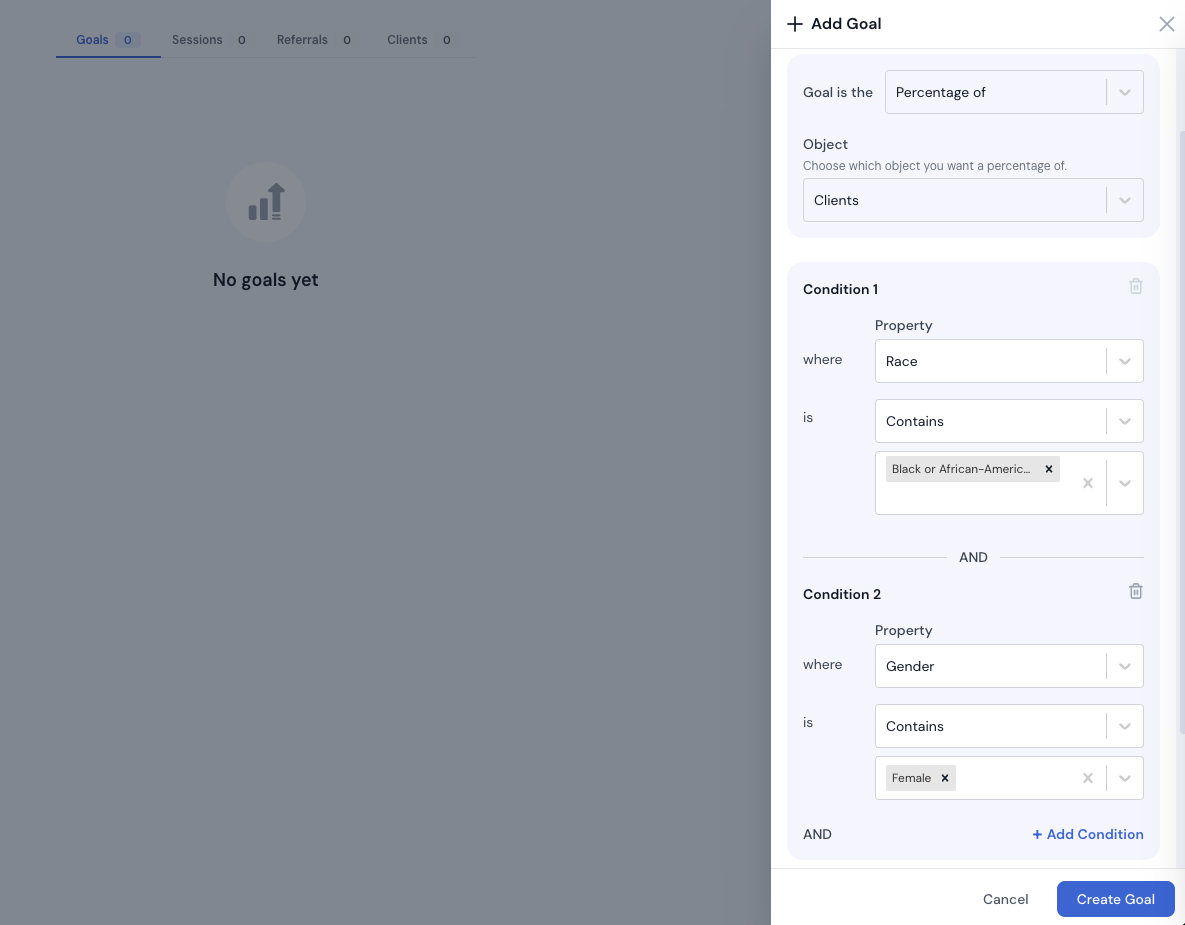
“Percentage of clients served by this program who are Black women"
You would:
- Choose Percentage of as the metric type
- Select Clients as the object
- Apply filter criteria using client properties
Your final metric might read:
[Percentage of] [clients] where [race] contains [Black] and where [gender] contains [female]
Filtering by Service Activity
Goal criteria can also be based on what a client or business has actually done. Alongside property filters, the builder accepts service-activity criteria:
- Received a session
- Submitted a form
- Attended an event
- Participated in a cohort
- Received a referral
- Were created
Each criterion offers + Filter by count, with an operator of at least, more than, exactly, or fewer than. Several also offer + Date range, with after, before, between, or on. Where it applies, you can narrow a criterion to a specific event or cohort rather than any of them.
For example, a goal measuring engaged clients might read:
[Number of] [clients] who [attended an event] [at least] [2] times
This is where the program's central promise gets its mechanism. Property filters describe who your clients are; activity criteria measure what your program actually did for them.
After defining the metric, enter your target value and click Create Goal.
You can create as many goals as needed for each program. We recommend setting goals that reflect the milestones and reporting requirements tied to your initiative.
Goals display as Cards or as a Table. Catalyzer remembers whichever view you last used.
The Program Workspace
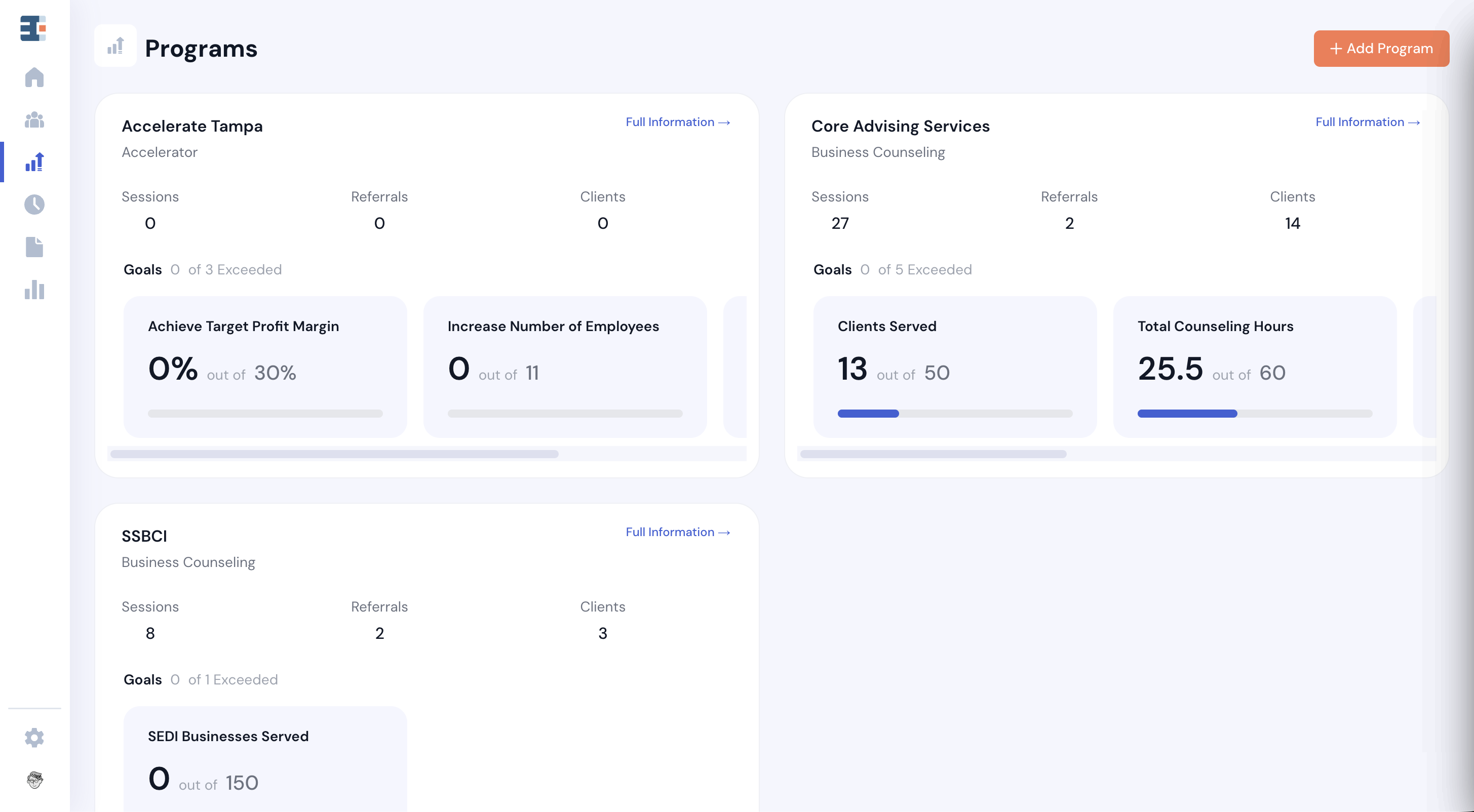
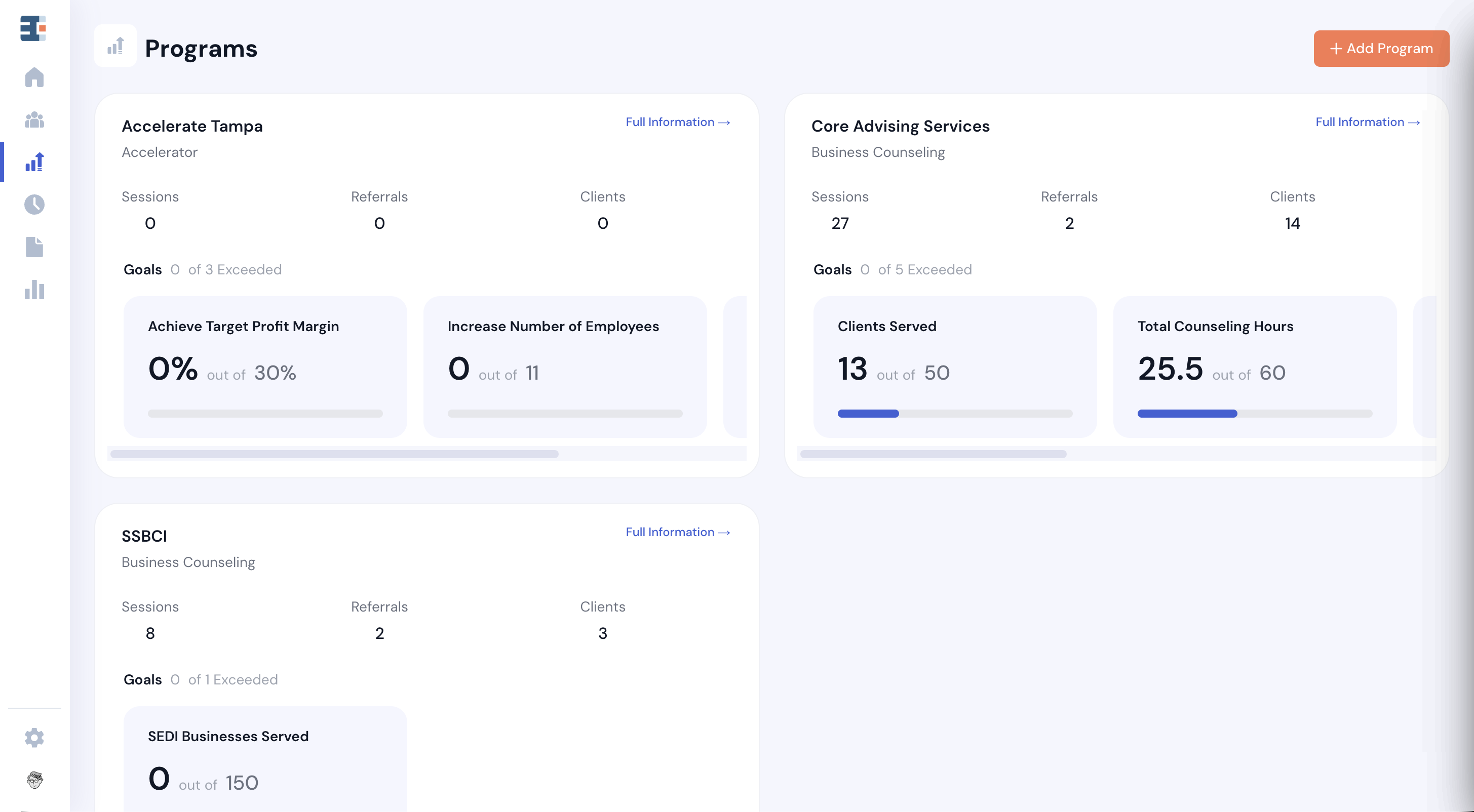
The Programs workspace displays all active programs in your hub as cards.
Click into any program to view:
- Goals and progress toward targets
- All associated service activities (sessions, referrals, cohorts, and events)
- All clients and businesses served under that program
If a client participates in multiple service activities under the same program, they will still only appear once in the list of clients served.
This ensures accurate counts without duplication.
Connecting a Program Application
Programs can also be connected to applications.
Before connecting an application, make sure you’ve created one in the Forms tool.
To connect an application:
- Navigate to the Applications tab within a program.
- Select the application you’d like to connect.
Once connected, that application can only be used for that specific program.
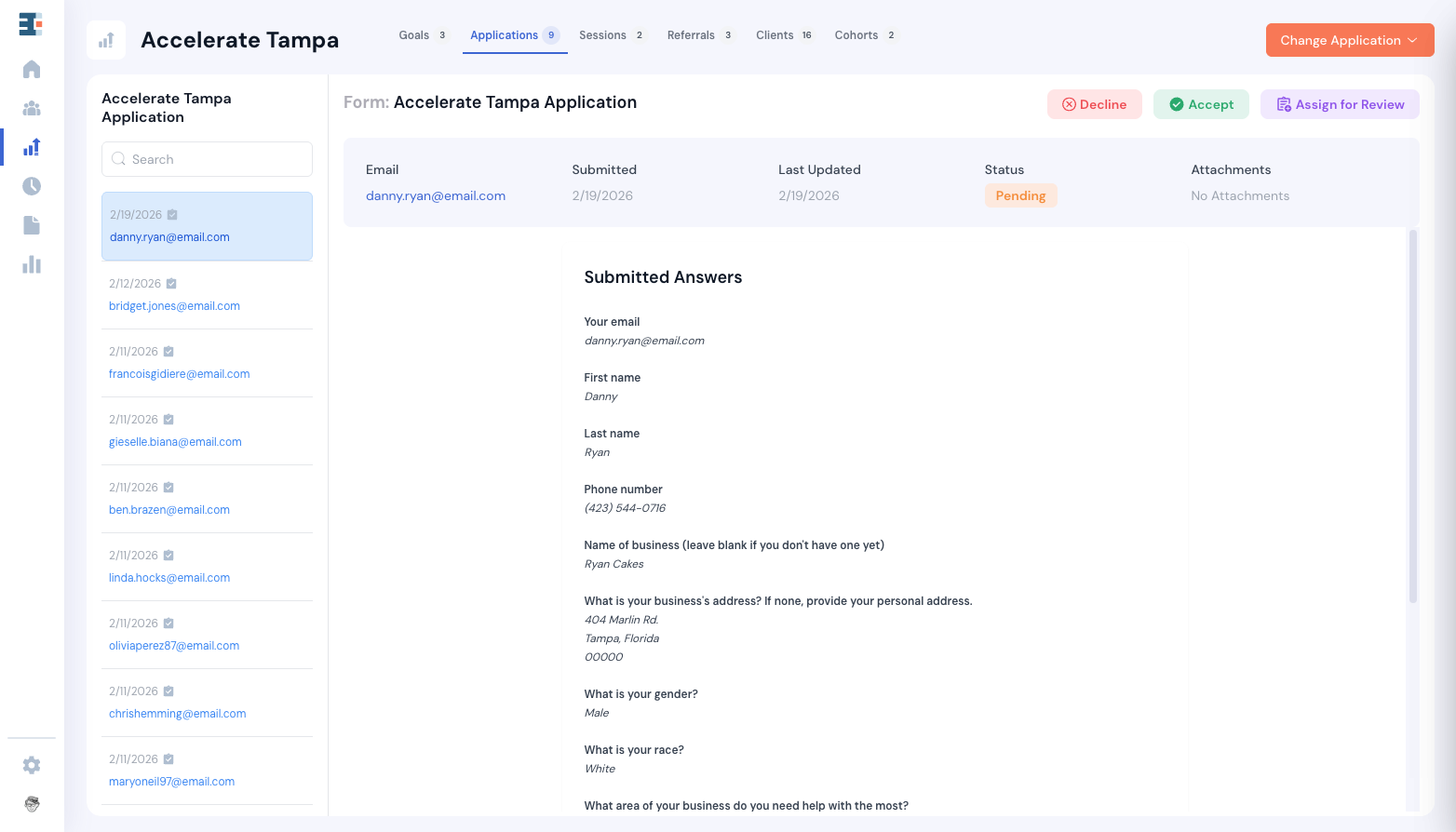
Program managers can review and triage applications directly within the program workspace (though applications can still be managed from the Forms tool).
Connecting applications to programs also simplifies cohort management, since accepted applicants can be organized directly within the appropriate program structure.
Why Programs Matter
Programs are the organizing layer that connects service delivery to measurable outcomes.
Without programs, sessions and referrals are simply activities.
With programs, those activities become attributable impact tied to a defined initiative.
By structuring your work under programs, you ensure that:
- Services are properly attributed
- Outcomes are measured within the correct timeframe
- Reporting aligns with funding and strategic goals
Programs are what transform daily service activity into structured, reportable impact.