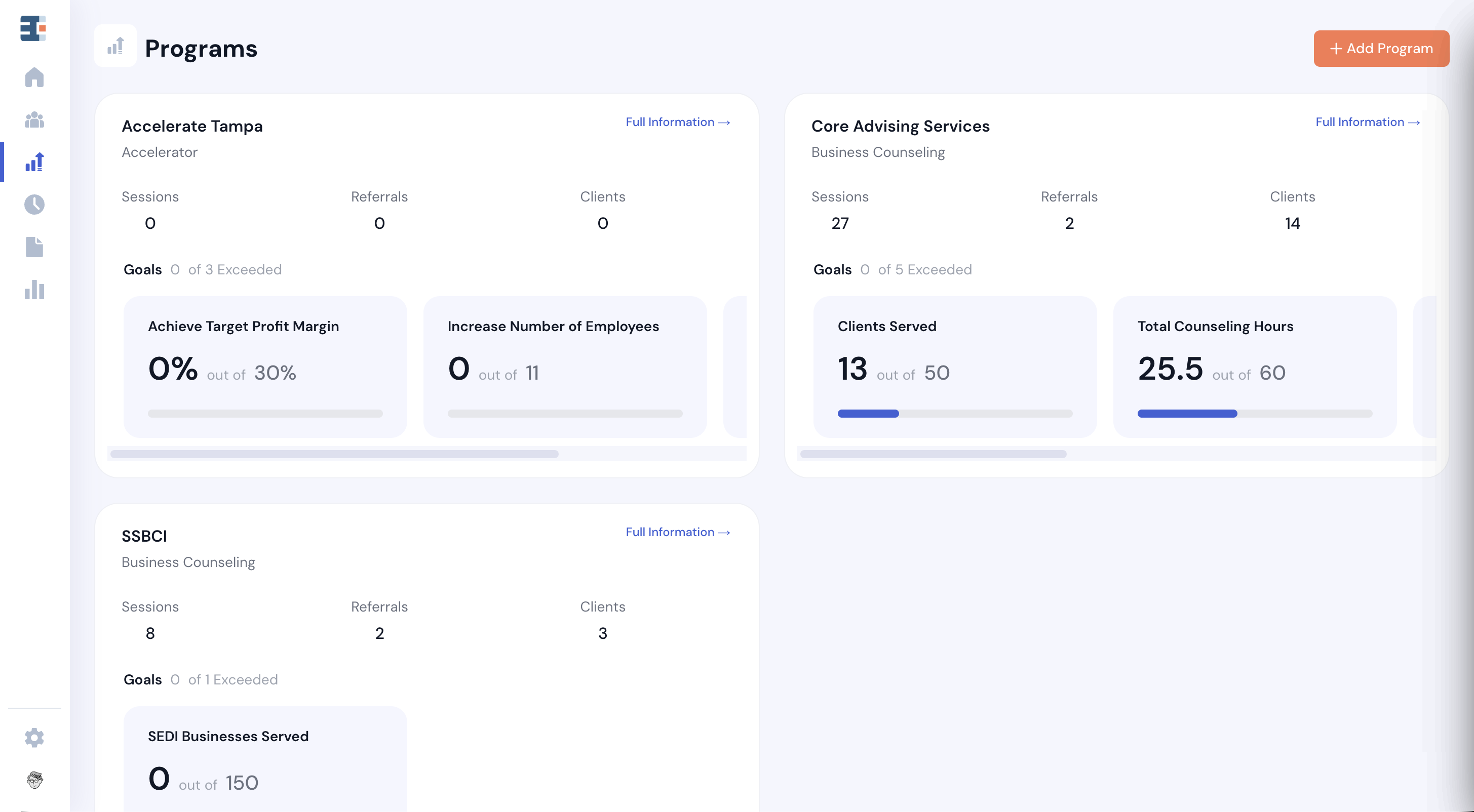
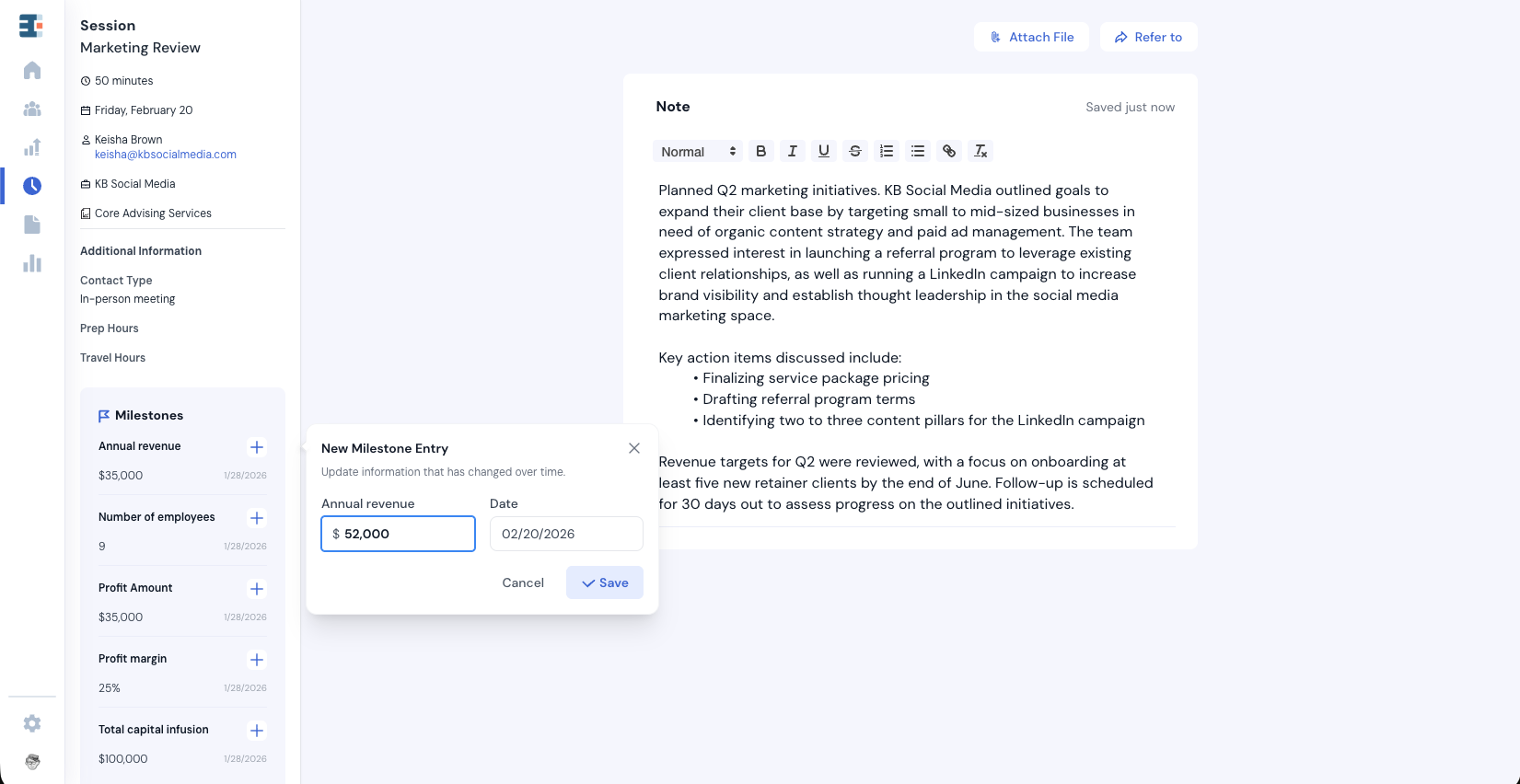
What Are Forms in Catalyzer?
At its heart, the Catalyzer Forms tool is a form builder built directly into the Catalyzer CRM—similar to tools like Typeform or Google Forms.
What makes Catalyzer forms different is how they integrate with the rest of the platform. Through property mapping and connections to other Catalyzer tools, forms can be used to:
- Create new clients
- Update information for existing clients and their businesses
- Attribute and verify economic impact data
- Collect e-signatures and files
- Accept event registrations
- Run and manage intake for different programs
- Survey cohorts immediately after they end and on a recurring basis
- Create waitlists for programs with limited capacity
Forms are one of the primary ways data enters Catalyzer, which makes thoughtful form design especially important.
Common Types of Forms
Before creating a form, it’s helpful to be clear about what you want the form to accomplish. Consider questions like:
- Will this form be used as an application that requires review or decisions?
- Is this a follow-up or survey for existing clients?
- Should someone who submits this form automatically be added as a client?
%20(1).png)
In Catalyzer, there are two main form “modes,” though both are highly flexible.
- Basic forms are simple questionnaires that can be shared via a public link. Questions can be mapped to CRM properties, and you can choose whether submissions automatically create clients.
- Applications are designed for intake workflows that require review. Application submissions do not automatically create clients—they must be accepted first. Applications can also be assigned to other users for review.
If you’re collecting information without needing a decision or workflow, use a basic form. If the form requires review or approval, use an application.
Creating a New Form
To create a new form, navigate to the Forms tool in the left-hand navigation. This opens the Forms List Page, where all forms in your hub are stored.
Click “New Form” in the top right to open the form builder. A single question—“Your Email”—is automatically created.
Email address is the only required field on all Catalyzer forms. It is used to identify which client a submission belongs to and to determine whether a new client should be created or an existing client should be updated.
Even if no other questions are mapped, collecting email ensures submissions are always connected to the correct client record.
Question and Data Types
To add additional questions, click “New Question.” You can select a question type from the dropdown. Available question types include:
- Text
- Long Text
- Number
- Dollar/Finance
- Date
- Phone
- Website
- Address
- Multiple Choice
- Checkbox
- Dropdown
- Yes/No
- Multi Select
- Rating Scale
- Matrix Simple
- Matrix Complex
- File Upload
- Signature
Choice-based questions carry two extra options: Allow an "Other" option, for answers your list didn't anticipate, and Allow "Select all" option on multi-select and checkbox questions.
💡 File upload questions have their own settings: a minimum and maximum number of files, and an accepted file types picker covering PDF, JPG, JPEG, PNG, GIF, DOC, DOCX, XLS, XLSX, and CSV. File size is not configurable; the platform limit of 25 MB per attachment applies.
Statements, Pages, and Conditional Logic
In addition to questions, forms also support statements that show formatted text. These can be used for welcome messages, longer question descriptions, or instructions.
Questions and statements are contained inside pages, which group related questions and statements together.
Both individual questions and statements can be configured to show conditionally, depending how a responder has answered prior questions in the form. To set a question or page as conditional, click the three-dot menu at the top right of the element and select Show Conditionally.
Then, set the criteria upon which the question or page should be displayed.
Required Questions
Questions can be marked as required using the three-dot menu on the question card. Required questions must be answered before the form can be submitted.
The email address question cannot be made optional, as it is required for data mapping.
Mapping Questions to CRM Properties
Form questions can be mapped to client or business properties in your Catalyzer hub.
Mapping connects form responses directly to your CRM, so information collected through forms can be used for filtering, reporting, and exports without manual cleanup.
Unmapped questions will still collect responses, but they will not update CRM properties.
To map a question, open the three-dot menu and select “Map to Property.” You’ll see a list of available properties. Properties already mapped within the same form will not appear, since a property can only be mapped once per form.
When a question is mapped:
- The question type locks to match the property type
- For multi-option properties, the question’s options are inherited from the property
- Options and question type cannot be changed without unmapping
These rules ensure consistency and clean data across the system.
Publishing Your Form
Forms are automatically saved as drafts until published. Drafts appear alongside published forms on the Forms List Page.
When ready, click “Publish” to generate a public link that can be shared anywhere—on your website, in emails, or directly with clients.
To copy the link, click “Share” and select “Copy link.”
💡 You can also configure a redirect URL in the form’s settings to send submitters to another resource—such as a meeting scheduler or resource library—after submission. The redirect is called Custom URL on Submission in the form's settings. See Form Settings below.
Form Settings
Every form has a settings panel that controls how it looks and how submissions are handled.
- Appearance. Toggle Show Logo, Align Text and Logo, Show Organization Name, and a Table of Contents for longer forms. Logos accept PNG, JPG, SVG, and WebP files up to 2 MB, and default to your hub logo.
- Custom URL on Submission. Send submitters to another resource after they submit, such as a meeting scheduler or a resource library.
- Send a copy of the user's response. Email each respondent their own answers as a PDF attachment.
- Form Submission Notifications. Choose which users in your hub are emailed when a new submission arrives.
- Overdue windows. For applications, set Pending - Overdue After and In Review - Overdue After in hours, days, business days, or weeks.
- Assign for Review (upon submission). Route new submissions to reviewers the moment they arrive, either to named Individual reviewers or Round Robin across a group.
- Subhub sharing. In a SuperHub, a form can be shared to all subhubs or to a selected set. Receiving hubs see the form with a read-only action set.
- Archiving. Forms you no longer need can be archived. Archived forms are reachable from the Forms List Page using View Archived.
How Forms Create and Update Client Records
How Forms Create Clients
When a form is submitted, Catalyzer checks whether the submitted email address already exists in your client list.
If no matching client is found (and the form’s settings allow it), a new client is created. Any mapped questions populate the corresponding client or business properties.
Forms are often the fastest way to populate your client list—especially for intake, pre-screening, or event registration.
How Forms Update Existing Clients
If the submitted email address matches an existing client, mapped responses overwrite the existing property values.
This allows your CRM data to stay current without needing to track down the most recent submission manually.
Viewing Form Submissions
Form submissions can be viewed in two places:
- On the Client Record Page, under the Forms tab
- In the Forms tool, under the Responses tab for each form
The Responses tab displays submissions in a toggle view, with a list on the left and the full response shown in the main panel.
Basic Form Submissions
For basic forms, submissions include actions such as Refer and New Session.
If a basic form is configured not to auto-create clients, submissions from non-clients will include an “Add to Clients” button. Once added, the standard actions become available.
Application Submissions
Applications include additional workflow features.
Each submission has a status: Pending, Assigned for Review, Accepted, or Declined. New submissions are pending by default.
Available actions include Accept, Decline, and Assign for Review, each of which updates the submission’s status.
Scoring Applications
Applications can be scored, giving your team a consistent way to compare submissions.
💡 Scoring is available on applications only. Basic forms cannot be scored.
Turn on Scoring for a question and you'll choose between two modes:
- Automatic. Build an ordered list of rubric rules that award points based on the answer. Rules are checked from the top down, and the first match wins.
- Manual. A reviewer enters a score within a minimum and maximum you set, guided by optional reviewer guidance text written for that question. On file upload questions, manual scoring can also be split into multiple scoring sections, each with its own title and range.
Form-level scoring settings include Whole numbers only, a scoring cutoff after which scoring closes, and Question-level reviewer assignment, which restricts who may score each question.
When multiple people review the same submission, Catalyzer aggregates their scores. For the full walkthrough, including the reviewer roster and scoring history, see Reviewing and Scoring Applications.
New Submissions
Unviewed submissions display a “New” tag until opened by a user.
Overdue Submissions
Applications can have configurable deadlines for pending and in-review submissions, set in hours, days, business days, or weeks (see Form Settings). Once overdue, a flag appears until the submission is accepted, declined, or reassigned.