Reports are a tool in Catalyzer for turning your data into saved, reusable views. A report is one saved query: a dataset, the columns you pick, optional filters, and optional grouping. It shows as a table, or as a chart once it's grouped.
You might use Reports to:
- List every client in a program alongside their business name and industry
- Chart the number of sessions logged each month
- Total the jobs created across a set of client businesses
- Export event registrations for a funder
Who Can Use Reports
The Reports item appears in the left-hand navigation only when your role has permission to view Reports and to view at least one of the data areas Reports reads from (Clients, Sessions, Events, Programs, Referrals, Forms, or a grant dataset on a grant hub). If you type the Reports address directly without access, Catalyzer sends you to the home page.
Each action needs its own permission:
- See Reports: view
- New Report, the + add-tab button, and theempty-state button: create
- Rename, Save changes, and Move to tab…: edit
- Duplicate and Copy to tab…: create
- Delete: delete
- Export CSV and Export XLSX: export
By default, System Admins have every permission, including export. Admins can view, create, edit, and delete. Advisors can view, create, and edit. Hubs can change these grants under Settings → Manage Roles.
Catalyzer decides these permissions report by report, not by role alone. A permission only applies when your role holds it and the grant reaches the hub the report belongs to. On a superhub, you can see a subhub's report and still have no Rename, Duplicate, Delete, or Export on it. When a permission is missing, Catalyzer hides the button or menu item.
The dataset picker also offers only datasets you can view. Saved reports built on a dataset you can't view are left out of your list entirely.
The Reports Page
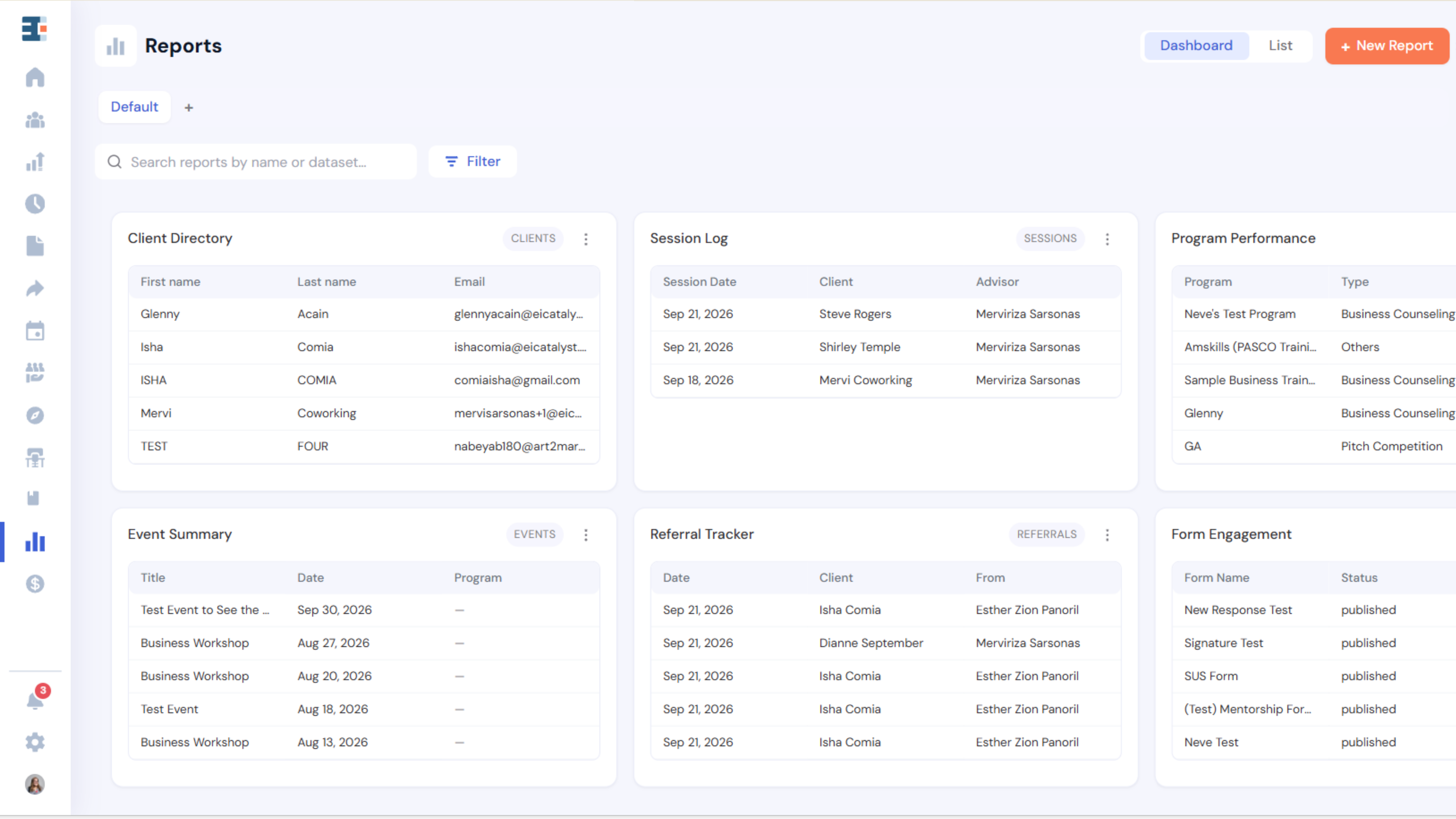
Select Reports from the left-hand navigation. The header holds the title, a Dashboard | List toggle, and an orange + New Report button. The tab bar sits below it, with Default first, any custom tabs after it, and a + button for adding tabs.
The toolbar has a search box (Search reports by name ordataset…) and a Filter button with three facets:
- Name: filter by report name
- Dataset: checkboxes for the datasets you can access
- Updated: All time, Last 3 Months, Last 6 Months, Last 12 Months, This Month, Year to Date, or Custom Range, which opens an inline calendar
Active filters appear as removable pills. Reset Filters clears them all. Your filters last until you close the browser tab, and Catalyzer also clears them when you sign out or switch hubs.
List View
List view is a table with the columns Name, Dataset, and Updated, plus a ⋮ menu on each row. Click a column header to sort. Name and Dataset sort A to Z first, and Updated sorts newest first by default.
Hover over a name and click the pencil to rename it in place. Press Enter to save or Esc to cancel.
The page shows 12 reports at a time. When there are more, a footer reads Showing 1–12 of N with Prev and Next buttons.
The ⋮ menu on a row (or a dashboard card) offers Rename, Duplicate, Move to tab…, Copy to tab…, and Delete. Items hide according to your permissions on that report. Move to tab… and Copy to tab… appear only when another tab exists to send the report to.
Actions on this page take effect immediately. Rename, duplicate, move, copy, delete, and resizing a card all save as soon as you do them, with no Save step.
A new hub shows No reports yet and a + Create your first report button. If nothing matches your search or filters, the page shows No reports match your search or filters. with a Clear search and filters link.
.png)
Tabs and Dashboards
Working With Tabs
Tabs are shared across your hub, not personal. Catalyzer lists them alphabetically after Default.
To add a tab:
- Click the + button in the tab bar.
- Enter a Tab name.
- Choose a Default view: List or Dashboard.
- Click Save. Catalyzer switches you to the new tab.
Hover over a tab to reveal a pencil for editing its name and default view, and an × for deleting it. The Default tab can't be renamed or deleted, and its pencil edits only its default view.
Deleting a tab asks you to confirm. The reports in it move back to the Default tab, and nothing else is deleted.
The Dashboard | List toggle in the header changes the view for your current visit only. The saved default comes from the tab's own settings.
Creating a report while a custom tab is open files the new report into that tab.
💡 Why does my new tab say nothing matches my search? A custom tab with nothing in it shows No reports match your search or filters. and a Clear search and filters link, as if a search had failed. The tab is simply empty. Create a report from inside the tab, or use Move to tab… or Copy to tab… on an existing report to fill it.
Dashboard View
In Dashboard view, each report is a card showing its name, a dataset badge, and a ⋮ menu. Click a card to open the report.
What a card shows depends on the report:
- Grouped reports render as a chart, using the report's saved chart type, with a summary line such as Total 1,234 · 6 categories. Cards show at most 8 bars. Click a bar or slice to open the records behind it.
- Ungrouped reports render as a small table with the first 3 columns and first 5 rows.
Cards can also show No data yet when no rows match, Not enough data to chart yet when a grouped report has too little to plot, or Could not load this report on an error.
Chart cards can be resized by dragging the handle in the bottom-right corner, and the new size saves immediately. Table cards can't be resized, and no card can be dragged to a new position. Cards follow the list's sort order, newest updated first by default. Resizing counts as an update, so a resized card moves to the front the next time the page loads.
Building a Report
Click + New Report. The wizard has five steps, shown in a stepper at the top:
- Dataset: choose where the data comes from.
- Columns: pick the fields to include.
- Filters: narrow the rows (optional).
- Visualize: group the data and add aggregations (optional).
- Preview & Save: name the report and save it.
Use Back and Next to move between steps, and Cancel to leave. From step 2 onward, a breadcrumb such as Dataset: CRM › Clients reminds you which dataset you chose.
Step 1: Pick a Dataset
Datasets are grouped into collapsible sections. Clients is pre-selected, so you can click Next right away. Double-clicking a tile selects it and moves on.
Most hubs see the CRM section:
- Clients: entrepreneurs and business owners in your CRM
- Sessions: counseling sessions logged against clients
- Events: workshops, trainings, and networking events
- Programs: hub programs and their enrolled clients
- Referrals: client referrals between programs and partners
- Form Submissions: submitted intake and counseling forms
- Cohorts: training cohorts and their enrolled clients
- Milestones: client and business milestone values (revenue, employment, achievements) and their program association
- Course Progress: learner enrollment, completion, assignment, and quiz progress for Courses programs, filterable and groupable by cohort (hubs with Courses only)
Hubs that run Grant Management also see a section with Grant Awardees, Grants, Grant Activities, Grant Goals, and Grant Import Batches. On a hub that only receives grants, the section is titled Grants and shows three of those five. Hubs that run Resource Compass see Resource Listings, Resource Compass Clicks, Resource Compass Submissions, and Resource Compass Flags.
Your role and your hub's modules decide which datasets you see, so your screen may show fewer than this list.
Changing the dataset in the wizard resets your columns, filters, and grouping, so pick the dataset first. After a report is saved, its dataset can't be changed. To start from a different dataset, duplicate the report or build a new one.
Step 2: Choose Columns
Pick the fields you want in the report. The step includes a Search fields… box, Select all, Clear, and a live count in the form Nof M selected. Each row shows its field type: text, number, date, or choice.
Some columns are always included. They're pre-ticked and greyed out with the tool tip Always included, and Clear leaves them in place. On Clients, for example, these include the ID, Created At, email, and business name.
Most CRM datasets group their columns. On Clients, the groups are Client, Business, Milestones, and Other. On Sessions, Programs, Cohorts, Referrals, Events, and Form Submissions, the dataset's own group comes first, followed by Associated Client, Associated Business, and Associated Milestone. Groups collapse. The Grant Management and Resource Compass datasets show a single flat list.
The field list comes live from your hub, so it includes your custom fields. Your list will differ from another hub's.
Step 3: Add Filters
Filters narrow the rows in your report. This step is optional. With no filters, the step reads No filters yet and every row is included.
Each filter is one row: a field, an operator, and a value.Click × to remove a row.
- + And adds another row to the current group. Every row in a group must match.
- + OR adds a new group. A row matches if it satisfies any one group. Groups are separated by an OR divider, and each has a Remove group link.
For example, suppose the first group holds two rows and the second group holds one. A record is included if it matches both rows in the first group, or if it matches the row in the second group.
The operators depend on the field type:
- Text: contains, does not contain, equals, does not equal, starts with, ends with, is known, is not known
- Number: equals, does not equal, greater than, less than, greater or equal to, less than or equal to, between, is known, is not known
- Date: on, before, after, between, in the last, is known, is not known
- Choice: is, is not, is any of, is not any of, is known, is not known
In the last offers Last 7 days, Last 30 days, Last 90 days, Last 1 month, Last 3 months, Last 6 months, and Last 12 months. Choice fields show a dropdown of your hub's options, and is any of and is not any of use a multi-select. Fields that can never be blank don't offer is known or is not known.
Clients also offer seven filter-only fields that can't be added as columns: Session Date, Referral Created, Cohort Enrolled, Event Registered, Form Submitted, Program Enrolled, and Business Count.
An incomplete row shows an inline error, and Next stays disabled until you fix it. The messages are Value is required, Both values are required for "between", Value must be a number, Lower bound must be less than upper bound, Start date must be before end date, and Select at least one value.
.png)
Step 4: Visualize
This step is optional. Group your data and add aggregations to enable a chart, or skip it to keep a plain table.
- Group by takes a primary field and an optional secondary field. The secondary field stays disabled until you set a primary. File-upload fields can't be used as the primary grouping.
- + Add aggregation adds a number field and a function: sum, avg, min, max, or count. The button is disabled when the dataset has no number fields.
A live chart preview appears on the right, with Bar, Line, and Pie buttons when more than one type fits.
💡 Why doesn't my report show a chart? A chart needs at least one Group by. A report without grouping can only be a table, and it appears as a small table on the dashboard. Add a Group by on this step, or later under Advanced on the saved report, and the report can appear as a chart.
.png)
Step 5: Preview and Save
Enter a Report name (required) and, if you'd like, a Description. The description can't be edited after you save, so write it now.
A live preview shows a header strip such as Clients · 5columns · 0 filters and a footer in the form Showing N of M rows. The preview re-runs automatically and pauses while any filter row is invalid.
Click Save report. Catalyzer creates the report and opens its page.
Working With a Saved Report
Click a report to open it. The header shows the report name with a pencil for renaming, a count badge (N shown, or N shown / M total when there are more rows than fit on one page), and the description if there is one. Export buttons appear here for people with export permission, and a ⋮ menu offers Rename, Duplicate, and Delete.
The toolbar has six controls:
- Search: free text, applied about half a second after you stop typing
- Filters: the same AND and OR builder as the wizard, opened inline, with a count badge
- Manage Columns: opens Choose which columns you see, with a Search properties box on the left and Selected Columns on the right. Drag to reorder, use Move to top, or remove columns. Locked columns show a padlock. Click Apply to confirm.
- Sort: opens a slide-out panel. Click a column once for ascending, again for descending, and a third time to clear, then click Apply. A report sorts by one column only, and you can't sort by clicking table headers on this page.
- Advanced: opens Advanced settings with Group by, Aggregations, and Rows per page (10, 25, 50, or 100). A badge counts the active groupings and aggregations.
- Table | Chart: switches how the results display
The Results Table
Pagination reads Showing 1–100 of 2,345 · Page 1 of 24, with Prev and Next buttons.
Grouped reports show one row per group, with the group columns, any aggregation columns (such as Sum of Revenue), and a Records count. Click a group row to expand it and see its records. A large group shows only its first records, with a note to narrow your filters to see the rest.
When a report has an aggregation, tiles appear above the table: Total Records, plus one tile for each aggregation. The tiles are calculated across all matching rows, while the table shows one page.
When a report is grouped, the Sort panel offers only the grouped fields, Count, and the aggregation columns.
Drilling Into Records
Clickable counts have a dotted underline. Click one to open a window listing the records behind the number. These columns are clickable:
- Clients: Sessions Count, Last Session, Sessions Count (in range), Referrals Count, Cohorts Count, Events Registered Count, Events Attended Count, Forms Submitted Count, and Programs Count
- Events: Registrations and Attended
- Form Submissions: Submissions
- Cohorts: Members Enrolled
- Programs: Clients Enrolled
Columns labeled (in range) currently count across all time, because Reports has no control for setting a date range on them.
A client name shown in blue links to that client's profile. This happens wherever a row carries a linked client, as in Sessions, Referrals, and Milestones.
Superhubs
On a superhub, a network dropdown next to the export buttons scopes the report to the whole network or to a single subhub. Catalyzer saves this choice with the report.
.png)
Saving Changes
Every change on a report's own page is a draft until you save it. That includes search text, filters, columns, sort, Advanced settings, chart type, chart colors, the subhub scope, and even renaming the title.
While you have unsaved edits, an amber Unsaved changes pill appears with Discard and Save changes buttons. Save changes is disabled while any filter row is invalid. The table updates live as you edit, whether or not you save.
The search box counts as an edit. Whatever you type there is saved into the report and applies every time the report opens.
If you lack edit permission on a report, Save changes is disabled with the message You do not have permission to edit this report.
Charts
Switch to Chart on a grouped report to see it plotted. Catalyzer plots the first aggregation if there is one, and the record count per group otherwise.
The chart type follows the grouping:
- Date grouping: a Line chart by default. It plots by day when there are 8 or fewer distinct days, and by month otherwise. With fewer than two points to join, it falls back to Bar.
- Any other grouping: a Bar chart.
- Pie: usually offered as an alternative.
The Bar / Line / Pie buttons appear only when more than one type fits.
A date grouping combined with an avg, min, or max aggregation usually gets no chart. Those values can't be re-added into day or month buckets. Pie charts aren't offered for many categories with an avg, min, or max aggregation, for the same reason.
With two Group by fields, the chart shows one bar or line pervalue of the second field. When there are more than 8 series, Catalyzer shows 7 and folds the rest into an Other series. Pie charts fold the same way.
Click a bar, point, or slice to open a window listing the underlying records, with a Filter these records… box. Other isn't clickable.
To change a series color, click its legend swatch on the report's Chart view and pick a color. This is a draft like any other edit, so click Save changes. Wizard previews and dashboard cards don't offer recoloring.
The Table | Chart toggle isn't saved, and a report always opens in Table. The chart type you choose is saved, and dashboard cards use it.
Exporting
Export CSV and Export XLSX both build the file on the server from the report's full result set, up to 10,000 rows. Neither is limited to the page on your screen.
Both buttons are disabled when the report shows no rows. They're hidden entirely unless you have export permission for that report, which by default only System Admins have.
💡 Note: An export uses the report's last saved version, not what's on your screen. If you change filters or columns and click Export without saving, the file reflects the earlier saved version. Click Save changes before you export.
Duplicating, Moving, and Deleting
Duplicate creates a copy named with (copy) after the original name. From a report's own page, Catalyzer opens the copy. From the Reports page, you stay where you are and the copy appears in the same tab. Copy to tab… works the same way but files the copy in another tab, and Move to tab… re-files the report itself.
Delete asks you to confirm. The report is permanently removed and can't be recovered. Deleting from a report's own page returns youto the Reports page.
Bringing It Together
Reports turn the records your team already keeps in Catalyzer into views you can reuse across the hub and export for a funder. Because each report re-runs against live data, it always reflects what's in your hub today.