

.png)
Grant Management is a tool in Catalyzer for administering cross-hub grants. This article covers the awardee side: how an organization that receives a grant submits its activity reports and invoices, responds to reviewers, and tracks payments. Awardees do this work in the Awardee Portal, a menu inside their own Catalyzer hub.
You might use the Awardee Portal to:
- See every grant your organization holds, and what each grantor expects next
- Submit a quarterly activity report built from your own Catalyzer records
- Submit an invoice with your costs and supporting documents
- Respond to reviewer comments and resubmit a returned invoice
If you administer grants for others, see the Grant Management (for Grantors) article.
Before You Start
An awardee is another Catalyzer hub. Your organization works in its own hub, and the grantor never creates logins or sends invites. The support team registers your hub and connects it to the grantor's hub. That connection is set up by support, not in the app.
Once your hub is registered, the Awardee Portal menu appears in your left-hand navigation. It's visible only to your hub's System Admins and Admins. Your grants appear in the portal after the grantor adds your hub as an awardee on a grant.
One awardee hub can hold grants from several grantors. Lists in the portal span all of them and show a Grant Name and a Funder Name for each item.
💡 Why can't I see any grants? Registering your hub gives you the Awardee Portal menu. Grants appear only after the grantor adds your hub to a specific grant as an awardee. If the menu is there but the lists are empty, ask your grantor whether they have added you to the grant.
How Grant Management Works for Awardees
Each grant you hold is divided into program years, and each program year is divided into reporting periods, such as quarters. For every reporting period, the grantor's system creates two items for you to submit:
- An activity report, with metrics derived from data
- An invoice, with your costs and supporting documents
Your grantor's reviewers review the invoice. The activity report isn't approved on its own, and it closes when the period's invoice is approved. Payments to you arrive as disbursements, which the grantor releases manually.
The Awardee Portal menu has seven items: Dashboard, My Grants, My Invoices, My Reports, Disbursements, Documents, and Performance.
Items you see in the portal carry one of these statuses: Pending, Under review, Needs revision, On Hold, Approved, Rejected, Overdue, or Closed. Closed appears when the submission window has passed or when the report's invoice was approved.
The Dashboard
The My Dashboard page is where you start each period. Two buttons, + Submit Report and + Submit Invoice, start the two submission wizards.
The page also shows:
- Cards for Active Grants, Total Awarded, Pending Reports, and Pending Invoices
- One card per grant, with a disbursement progress bar
- Recent Submissions and Upcoming Deadlines panels
- Banners for anything marked Needs Revision or On Hold
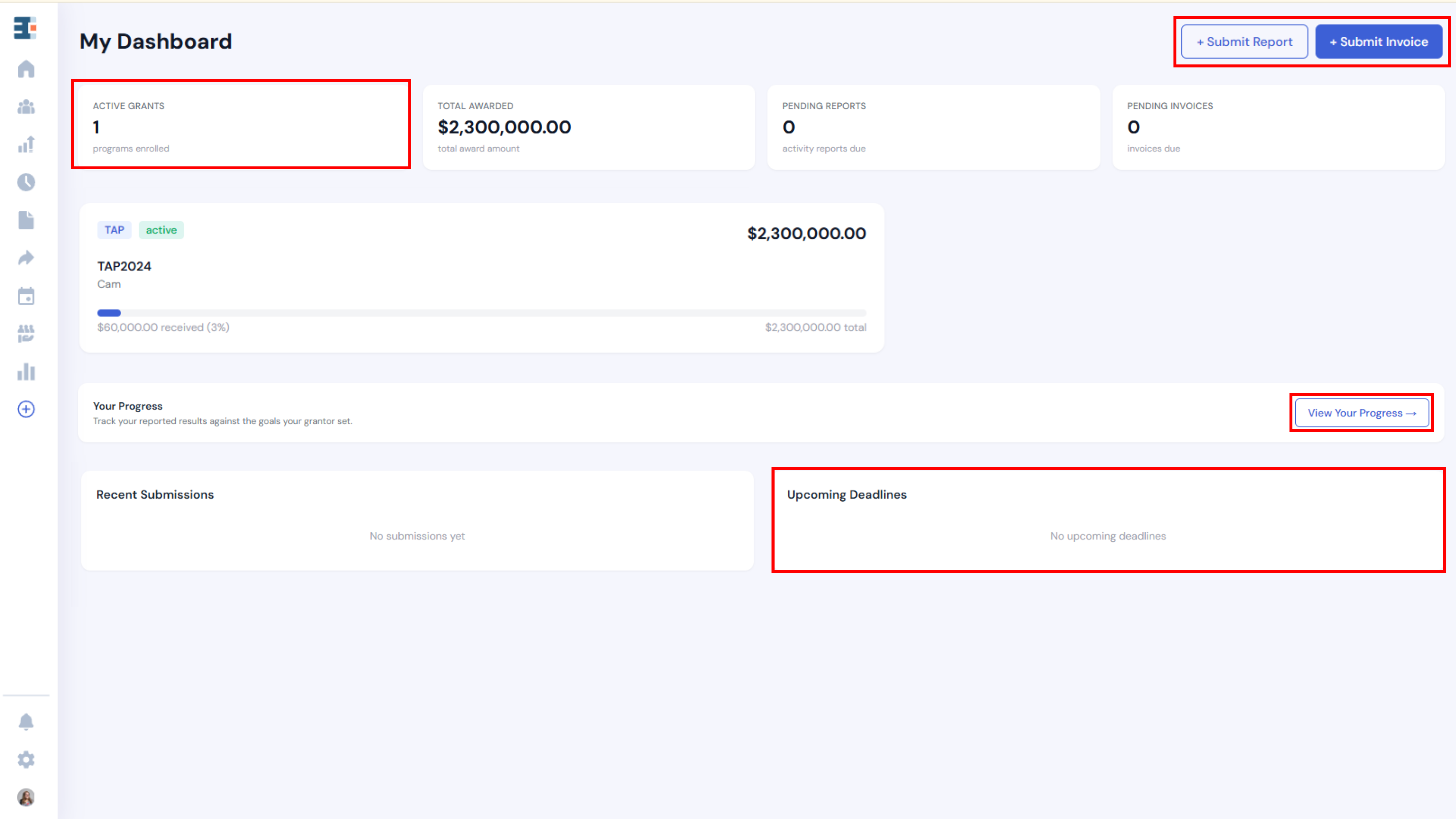
My Grants
Open My Grants to see your grants, and click one to open its detail page. The detail page has five tabs: Invoices, Reports, Disbursements, Documents, and Status Timeline.
The Status Timeline is the shared activity log for the grant. It shows exactly what your grantor sees for this grant, so you never have to wonder what the reviewers can see.
Submitting an Activity Report
An activity report summarizes what your organization did during the reporting period. Its metrics are derived automatically, and nothing is typed by hand.
💡 Do I enter my numbers in the report? No. Catalyzer derives every metric in the report from your hub's Catalyzer records (counseling, training, and milestone records are included) or from an imported spreadsheet. Because the report reads from your data, keep your records current before you start.
- Click + Submit Report on the dashboard, or Submit → next to a report in My Reports.
- On Grant & Period, choose the grant and the reporting period.
- On Data Source, choose where the metrics come from: your Catalyzer records, or Import Unified File.
- On Review & Submit, check the Activity Summary.
- Tick every item on the pre-submission checklist.
- Click Submit Report.
If you choose Import Unified File, download the template (catalyzer_unified_template_v2.8.xlsx), which covers Counseling, Training, Milestone, Contracts, and Capital. Upload the finished file as an .xlsx of up to 200 MB. An imported file must have zero errors before you can continue. You can fix errors on screen with Fix errors on screen, or download the file, correct it, and upload it again. Catalyzer refuses an outdated template.
The Activity Summary shows only metrics that have a goal. If the grantor hasn't set goals for the grant year, the summary reads No goals are set for this grant year. That is a question for your grantor, who sets goals on the awardee record.
💡 Note: The Narrative Report is submitted with the invoice, not with the activity report. The first step of the report wizard reminds you of this.
The report wizard's Save button only remembers your choice in the current browser.
.png)
Submitting an Invoice
An invoice lists your direct costs for the period and attaches the documents that support them.
- Click + Submit Invoice on the dashboard, or Submit → next to an invoice in My Invoices.
- On Grant & Period, choose the grant and the reporting period.
- On Direct Costs, enter the amount for each cost line. The cost lines depend on the grant's program type. For TAP grants, they are Personnel, Fringe Benefits, Program Administration, Supplies, Contractual, and Research & Marketing.
- On Documents, upload at least one supporting document. Accepted types are PDF, DOC, DOCX, XLS, XLSX, and CSV, up to 9 MB each.
- On Review & Submit, check the total, which Catalyzer calculates for you.
- Submit the invoice.
An invoice of $0.00 is valid when you incurred no expenditure this period.
Click Save Progress at any point to keep the invoice on the server and finish later. SSBCI TA and SSBCI SBOP grants also offer a downloadable Invoice Template and Narrative Report Template.
When you submit, the confirmation screen cites California Government Code § 927.4 and a 45-day window for the grantor to process payment. Catalyzer shows this text for every grant, whatever its terms.
.png)
Submission Windows
Each item is open for submission during a window:
- Invoices close 30 days after the period ends, unless the grantor set a Submission Accepted Until date. In that case, they close at the end of that day.
- Reports have no time limit unless the grantor set a cutoff, but they lock once the period's invoice is approved. The message reads the invoice for this reporting period has been approved; the report can no longer be updated.
- Anything the grantor returns, puts on hold, or reopens is open regardless of dates.
A closed item shows This invoice period is closed (or reporting period) and asks you to contact your grant administrator if you need to make changes.
Responding to a Return
When a reviewer sends an invoice back, its status changes to Needs revision. The item shows Comments from Reviewers, grouped by document. Reviewers appear as "Reviewer 1" and "Reviewer 2", never by name.
- Open the returned invoice and read each comment.
- Reply to any point in the box reading Your reply to the reviewers (optional). You can also leave a note for the reviewers.
- Correct the invoice or its documents.
- Complete the Resubmission Checklist.
- Resubmit.
Points that a reviewer marked Still not fixed are flagged, so start with those.
When an Invoice Is On Hold
A hold means the invoice is waiting on something else, usually the activity report or a Success Story. Your invoice's amounts stay unchanged. Fix the report and resubmit it, or add the missing Success Story to the invoice and resubmit that. The invoice then returns to review automatically.
.png)
Other Pages in the Awardee Portal
- My Invoices and My Reports: lists of every invoice and report, with Export CSV, Export XLSX, and Submit → or Resubmit → links.
- Disbursements: a read-only view of all grant disbursements.
- Documents: supporting documents across all your grants. Click + Upload Document to add one.
- Performance: Your Progress against the grantor's goals, quarter by quarter.
Bringing It Together
The Awardee Portal gives you one place to see what each grantor expects, send it, and read the response. Because the Status Timeline matches what your grantor sees, both sides work from the same record.
.png)
